
How to Send Shopify Orders to Your Kitchen Staff on WhatsApp (2026)
No WhatsApp Business account needed: get every Shopify order to your kitchen staff on WhatsApp in real time. Setup guide for restaurants and cloud kitchens.
Quick answer: Install StaffPing from the Shopify App Store, add your kitchen staff's WhatsApp numbers, verify each one with a quick code, and create a ping that fires on every new order. Orders reach the kitchen's WhatsApp within seconds — no WhatsApp Business account, no printer, and no Shopify admin access for the cooks.
When a customer places an order on your Shopify store, that order lands in the Shopify admin. The problem is your kitchen does not live in the Shopify admin. The person cooking is at a station with their hands full, not refreshing a browser tab. So the order sits there until someone notices it, prints it, or walks over to say "we have a new one." Every minute in that gap is a minute the food is not being made, and for food, minutes are the whole game.
This guide shows you how to close that gap by sending every new Shopify order straight to your kitchen staff on WhatsApp, in real time, on a phone they already keep next to the pass. No printer to jam, no screen to babysit, no admin login for the cooks. And no WhatsApp Business account, which is the part most people assume they need and do not.
We will cover who this is for, why the usual methods fall short, the exact steps to set it up, and how to route orders to the right station once you are running.
Who this is for
This works for any Shopify store where the order needs to reach a kitchen fast:
- Restaurants taking online orders for pickup or delivery alongside dine-in.
- Cloud kitchens and ghost kitchens running one or more brands out of a shared space, where the whole operation is online orders.
- Live kitchens and dark kitchens where prep starts the moment an order comes in.
- Bakeries, dessert shops, and meal-prep stores with same-day or next-slot fulfillment.
If your kitchen currently finds out about online orders by someone watching a screen or reading off a printed ticket, this is for you.
Why the usual methods fall short
Most kitchens taking Shopify orders are using one of these, and each one leaks:
Watching the Shopify admin. Someone has to keep a tab open and keep looking. During a rush, nobody is looking. Orders pile up unseen and the first you hear of it is an angry "where is my food" message.
Email notifications. Shopify can email you on every order, but email is not a kitchen tool. It arrives late, buries the useful details, and no cook is checking an inbox mid-service.
A receipt printer or KDS hardware. These work, but they cost money to buy and maintain, they jam at the worst time, and they tie the order to one physical spot. Run more than one station or location and the hardware gets expensive and inflexible fast.
Screenshotting orders into a chat by hand. This is what a lot of small kitchens actually do, and it beats nothing, but it depends on one person remembering to do it every single time. Miss one and an order is lost.
The pattern in all of these is the same: the order and the kitchen are in two different places, and a human has to bridge the gap. Take the human out of the bridge and the gap closes.
The approach: send every order to a WhatsApp the kitchen already watches
Your kitchen staff already have WhatsApp open all day. It buzzes, they look. So instead of asking them to come to the order, bring the order to them. The moment a new order is placed on Shopify, it arrives as a clean WhatsApp message to each kitchen staff member you have added, or to one shared phone the kitchen keeps at the pass. The cook reads it and starts cooking. That is the entire idea.
On a shared kitchen phone, that thread becomes your ticket rail. Orders arrive in sequence, everyone at the pass sees the same queue, and nobody depends on a single person to relay anything.
Here is the part that surprises people: you do not need a WhatsApp Business account, the WhatsApp API, a Meta Business account, or any number of your own. StaffPing sends the alerts from its own WhatsApp number. All you do is add your kitchen staff's ordinary WhatsApp numbers as the people who should receive orders. There is nothing to connect, register, or link on your end.
How to set it up, step by step
First, install StaffPing from the Shopify App Store. It adds to your admin with no code to edit. After that, setup is two steps.
Step 1: Add and verify your kitchen staff as recipients.
- In the StaffPing admin inside Shopify, enter a kitchen staff member's WhatsApp number.
- StaffPing sends that phone a 6-digit code over WhatsApp. The staff member reads it off their phone and you enter it back into StaffPing.
- The number is now verified and ready to receive orders. Repeat for each cook, or add one shared kitchen phone if you want a single screen at the pass.
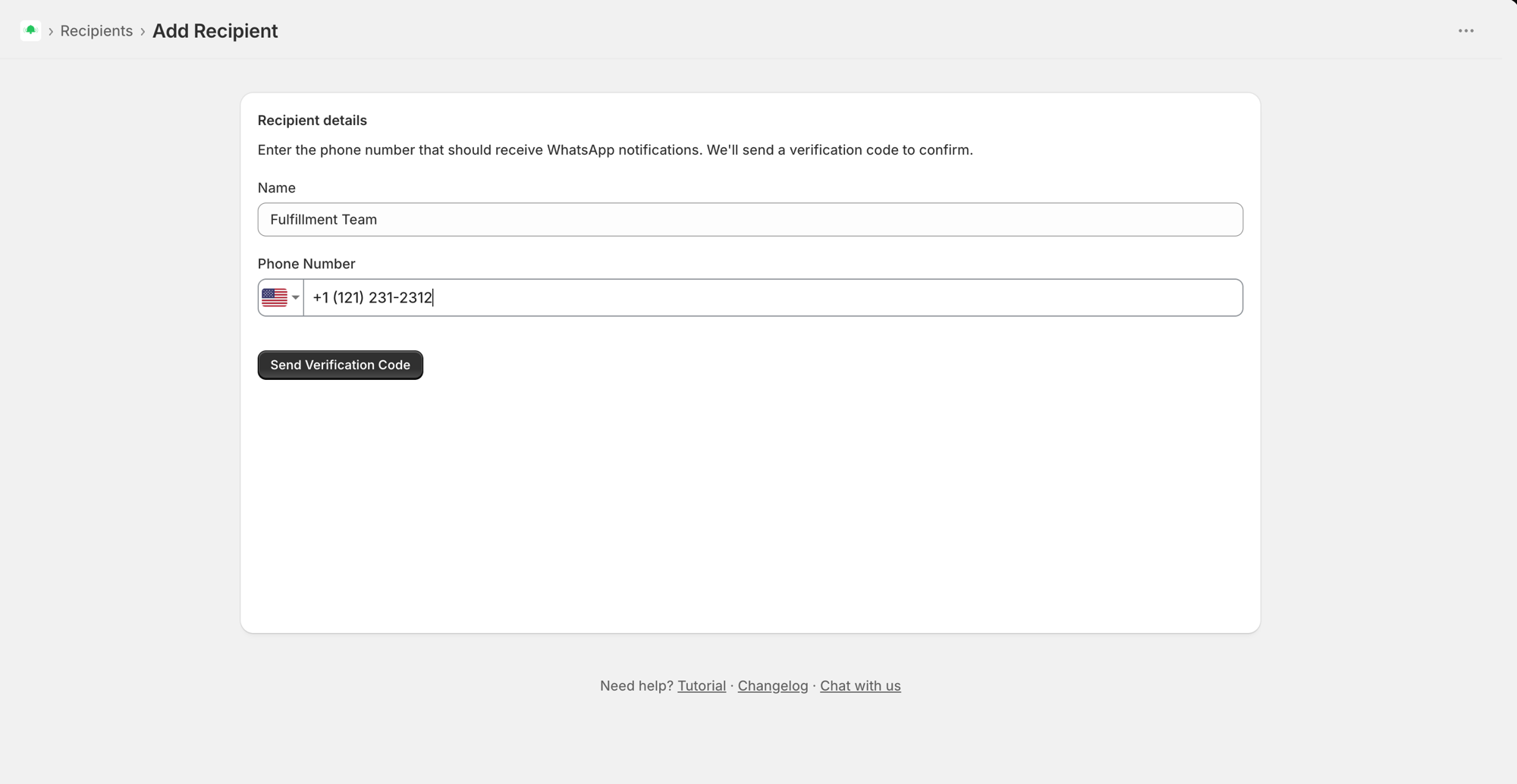
That verification step is not busywork. It doubles as a live delivery test. If the code arrives, orders will arrive. If a number is mistyped or is not on WhatsApp, it fails right there instead of orders silently going nowhere later. The code is valid for 10 minutes, and you can send a fresh one if it lapses.
Step 2: Create your first ping.
A "ping" is the rule that connects an order event to the people who should hear about it.
- Set the trigger to new order, so it fires on every order that comes in.
- Choose your verified kitchen recipients.
- Pick an alert template. You choose from ready-made presets: Compact, Detailed, and No payment info. This matters more than it sounds, because the default is Compact, and Compact does not list the items. It shows the order number, customer name, and status lines, which is no use to a cook. Switch it to No payment info, which shows the items the kitchen needs without the total or payment method they do not.
- Save it, then place a test order and confirm it lands on the kitchen's WhatsApp within seconds.
That is the whole setup. Two steps. No WhatsApp Business account, no number to connect, no "from" number to configure, no code to install. Add your staff, verify them, point a ping at them, and the kitchen is live.
What the kitchen sees
Each order arrives as a WhatsApp message, and how much of it shows depends on the template you picked when creating the ping.
The default is Compact, and for a kitchen it is the wrong default. It shows the order number, the customer name, and status lines like Financial: Paid and Fulfillment: Unfulfilled. It does not list the items. A cook cannot cook from that.
The Detailed template is what a kitchen wants. It carries the order number, customer name, phone number, the items and quantities, and the address, plus the order total, payment status, and payment method. Since the cook does not need the money side, use No payment info, which drops those last three and leaves exactly what the line needs. A kitchen ticket then reads like this:
Order #1042 Ahmed Hassan +20 10 xxxx xxxx 2x Chicken Shawarma, 1x Falafel Wrap 14 Nasr Street, Cairo
That is a ticket a cook can act on the second it lands, on a device already in their hand.
Routing orders to the right station or brand
A small kitchen can send every order to one thread and be done. A bigger operation usually wants orders split up, and you do that by creating more than one ping.
Each ping can filter on the order's contents, so you can send only the matching orders to a given set of recipients. Two common patterns:
One brand, multiple stations. Create a ping per station, each filtered by the products, SKUs, or collections that station handles, sent to that station's staff. The grill only sees grill orders, the cold station only sees theirs. We cover this filtering in depth in how to send order notifications to different staff based on product or collection.
Multiple brands in one cloud kitchen. If you run several virtual restaurants out of one space, filter each brand's orders by product, SKU, or collection and route them to that brand's staff, so nobody sifts through orders that are not theirs. The same pattern powers routing Shopify orders to different vendors automatically.
More than one physical kitchen. If each location cooks for its own area, route orders to the right kitchen the same way multi-location retailers do — see setting up Shopify order alerts for multiple store locations.
Start with one ping sending everything to everyone. Once you know where the noise is, split it out with filters. Do not over-engineer the routing on day one.
Small habits that make it work
The app gets the order to the kitchen. These habits keep the line from tripping over itself:
- If each cook has their own phone, they each get their own copy of every order. Coordinate on the line the way you already do.
- If you use one shared kitchen phone, keep it at the pass as the ticket screen and put one person on watch during a rush to call tickets out loud.
- Keep that number for orders only. Replies to the alert go back to StaffPing, not to your team, so use your normal staff chat for talking to each other. The order thread stays clean.
When this is not the right fit
Being straight with you: this is not the answer for everyone.
If you already run a kitchen display system that your team likes and it is working, you do not need to rip it out. And if you are doing very high volume where cooks genuinely need a dedicated always-on screen with bump bars, a proper KDS built for that pace may serve you better than a phone.
Where WhatsApp alerts shine is the large middle: kitchens that are past screenshotting orders by hand but are not big enough to want, buy, and maintain hardware at every station. If that is you, this is the simplest reliable way to get orders to the line.
Frequently asked questions
Do I need a WhatsApp Business account or the WhatsApp API for this?
No. This is the part most people get wrong. You do not need a WhatsApp Business account, the WhatsApp Business API, a Meta Business account, or any WhatsApp number of your own. StaffPing sends the order alerts from its own WhatsApp number. You only add your kitchen staff's ordinary WhatsApp numbers as recipients.
How do I send Shopify orders to my kitchen without a printer?
Install StaffPing, add your kitchen staff's WhatsApp numbers and verify each with a quick code, then create a ping that fires on every new order. Orders arrive on the phone the kitchen already keeps by the pass. No printer, no hardware to buy or maintain.
Does the kitchen need access to my Shopify admin?
No. You set everything up from the admin, but the cooks never log in to Shopify. They only see the orders that arrive on WhatsApp. Admin access stays with you.
Can I send orders to more than one kitchen staff member?
Yes. You add each person's WhatsApp number as a recipient and verify it, and they all receive every order in real time. How many recipients you can add depends on your plan. You can also send to one shared kitchen phone instead of individual devices.
Can I control how much detail is in the alert?
Yes. When you create the ping, you pick from ready-made templates such as Compact, Detailed, and No payment info. That lets you keep the kitchen's alert focused on the order and the items and leave off details a cook does not need, like the payment method or total.
How fast does the order reach the kitchen?
In real time, the moment the order is created on Shopify. There is no batching and no waiting. The kitchen sees it within seconds of the customer checking out.
Can I route different orders to different stations?
Yes. Create a separate ping for each station or brand and filter it by the order's products, SKUs, or collections, so each set of staff only sees the orders that apply to them. Most kitchens start with one ping for everything and split it out later.
What happens when an order is cancelled?
You can create a ping that fires on the cancelled event, so the kitchen is told to stop rather than cooking an order that has already been pulled. That saves the food and money that would otherwise get made anyway.
Is this only for restaurants?
No. It fits any Shopify store where an order needs to reach people who are working with their hands and not watching a screen. Cloud kitchens, bakeries, meal-prep businesses, and dark kitchens all use the same setup.
Related reading
- StaffPing on the Shopify App Store: send every new order to your team on WhatsApp
- Why Shopify teams need WhatsApp order alerts
- Send order notifications to different staff by product or collection
- Send Shopify orders to different vendors automatically
- Shopify order alerts for multiple store locations